


Basic Excel Formulas
Microsoft Excel is one of the most powerful and widely used tools for data entry, analysis, reporting, and business decision-making. Whether you are a student, professional, data analyst, accountant, or someone who works with numbers, mastering Basic Excel Formulas is the first major step toward becoming truly efficient in Excel.
This detailed guide covers the most essential Excel formulas, how they work, real-life use cases, and topic-wise screenshots to help you visualize everything clearly.
Why Learning Basic Excel Formulas Matters
Excel formulas allow you to automate calculations, clean data, analyze trends, and save countless hours every week.
Benefits of Excel Formulas
- Increase productivity with automated calculations
- Reduce errors by eliminating manual math
- Analyze trends quickly
- Organize large datasets
- Build dashboards and reports
- Improve employability across industries
1. SUM Function — Add Numbers Quickly
The SUM formula is one of the first Excel functions beginners learn. It allows you to add numbers across rows, columns, or specific cell ranges.
Syntax
=SUM(number1, number2, ...)
Example
To add values in cells B2 to B6:
=SUM(B2:B6)


Real-Life Use Cases
- Monthly expense total
- Total sales
- Total marks scored
- Total working hours
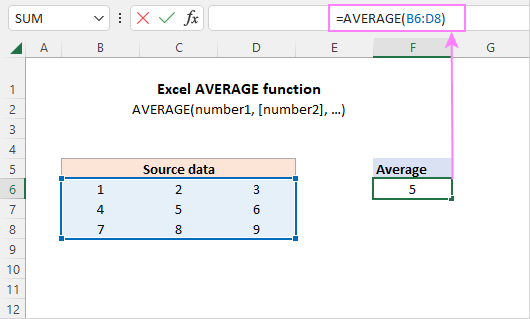
2. AVERAGE Function — Calculate Mean
The AVERAGE formula gives the numerical mean of a range of values.
Syntax
=AVERAGE(number1, number2, ...)
Example
=AVERAGE(C2:C10)

Use Cases
- Average sales per week
- Average student scores
- Average salary
3. COUNT, COUNTA, and COUNTBLANK — Count Anything
These formulas help you count cells based on whether they are numbers, non-empty, or blank.
COUNT (numbers only)
=COUNT(A1:A20)
COUNTA (all non-empty)
=COUNTA(A1:A20)
COUNTBLANK (empty cells)
=COUNTBLANK(A1:A20)


Use Cases
- Counting entries in a list
- Checking missing data
- Counting number of responses in a survey
4. MIN and MAX — Find Lowest or Highest Value
These formulas help you identify extremes within a dataset.
Example Syntax
=MIN(B2:B15)
=MAX(B2:B15)


Use Cases
- Lowest test score
- Highest monthly revenue
- Minimum price in a product list
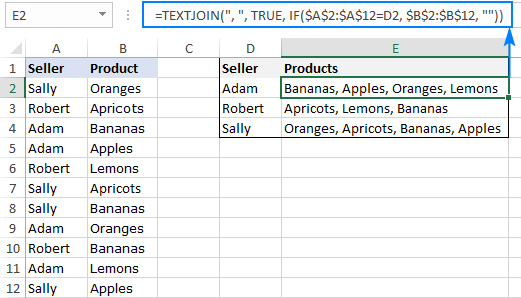
5. CONCATENATE / CONCAT / TEXTJOIN — Merge Text
These functions help combine text values.
CONCAT Example
=CONCAT(A2," ",B2)
TEXTJOIN Example
=TEXTJOIN(", ", TRUE, A2:A6)

Use Cases
- Combine first + last name
- Create full addresses
- Merge product codes
6. IF Function — Make Logical Decisions
The IF formula lets you run conditional checks.
Syntax
=IF(logical_test, value_if_true, value_if_false)
Example
=IF(C2>=50,"Pass","Fail")


Use Cases
- Pass/Fail classification
- Status labels (Completed/Not Completed)
- Sales performance (Target Achieved / Not Achieved)
7. SUMIF and SUMIFS — Conditional Summation
These formulas allow you to sum data only if conditions are met.
SUMIF (one condition)
=SUMIF(A2:A10,"North",B2:B10)
SUMIFS (multiple conditions)
=SUMIFS(C2:C10, A2:A10,"North", B2:B10, ">500")


Use Cases
- Total sales by region
- Total expenses in a particular category
- Sum of marks for a subject
8. COUNTIF and COUNTIFS — Conditional Counting
Useful for counting entries meeting specific conditions.
COUNTIF
=COUNTIF(A2:A20,"Completed")
COUNTIFS (multiple conditions)
=COUNTIFS(A2:A20,"Completed", B2:B20, ">50")


9. VLOOKUP — Search for Values Vertically
VLOOKUP is one of Excel’s most famous lookup functions.
Syntax
=VLOOKUP(lookup_value, table_array, col_index_num, FALSE)
Example
Find the price of a product:
=VLOOKUP(A2, E2:F100, 2, FALSE)


Use Cases
- Retrieve product price
- Find student grades
- Search employee details
10. HLOOKUP — Horizontal Lookup
Works like VLOOKUP but searches horizontally.
=HLOOKUP("Sales", A1:Z5, 3, FALSE)


11. XLOOKUP — The Modern Replacement for VLOOKUP
XLOOKUP is more powerful and flexible.
Syntax
=XLOOKUP(lookup_value, lookup_array, return_array)
Example
=XLOOKUP(A2, E2:E100, F2:F100)


Benefits
- No need for column numbers
- Can search left-to-right or right-to-left
- Works with entire tables dynamically
12. TRIM, CLEAN, PROPER — Text Cleanup
TRIM
Remove extra spaces:
=TRIM(A2)
PROPER
Convert to Proper Case:
=PROPER(A2)
CLEAN
Remove non-printable characters:
=CLEAN(A2)

Use Cases
13. LEFT, RIGHT, MID — Extract Text
Extract characters from strings.
LEFT
=LEFT(A2, 4)
RIGHT
=RIGHT(A2, 2)
MID
=MID(A2,3,5)

14. TODAY and NOW — Date & Time Functions
TODAY
=TODAY()
NOW
=NOW()


Use Cases
- Auto-updated date stamps
- Calculate age
- Calculate due dates
15. DATE, YEAR, MONTH, DAY — Build & Extract Dates
DATE
=DATE(2025, 5, 20)
YEAR
=YEAR(A2)


16. ROUND, ROUNDUP, ROUNDDOWN
ROUND
=ROUND(A2, 2)
ROUNDUP
=ROUNDUP(A2, 0)


17. PMT — Loan & EMI Calculator
Very useful for financial analysis.
Syntax
=PMT(rate, nper, pv)
Example
=PMT(10%/12, 60, -300000)


18. ABS — Convert Values to Positive
=ABS(A2)
Useful for:
- Profit/loss calculations
- Cleaning negative values

19. LEN — Count Characters
=LEN(A2)

20. Basic Excel Formula Shortcuts
| Task | Shortcut |
|---|---|
| AutoSum | Alt + = |
| Insert function dialog | Shift + F3 |
| Show formulas | Ctrl + ` |
| Copy down formula | Ctrl + D |
Conclusion: Master These Basics to Become an Excel Pro
Knowing these 20 essential Excel formulas will drastically improve your productivity and confidence in Excel. This guide gives you real examples, explanations, and visual screenshots to practice along.
