

Excel is one of the most powerful business tools ever created — but even its most advanced formulas cannot match the automation power of Excel Macros. Macros allow you to record tasks, write custom scripts in VBA, and automate repetitive work so Excel performs tasks on its own.
This extensive guide is designed for intermediate Excel users who want to move beyond formulas and start leveraging automation for efficiency, accuracy, and productivity.
We’ll explore:
- How to record and run Macros
- How to edit VBA code
- How to write your own VBA procedures
- Practical business automation examples
- Screenshot-guided tutorials
- A full VBA cheat sheet
- Optimization tips
Let’s begin your journey into Excel automation.
Understanding Excel Macros
What Is a Macro?
A Macro is a sequence of actions that Excel can execute automatically. These actions can be:
- Recorded using the Macro Recorder
- Written manually using VBA (Visual Basic for Applications)
If you have ever repeated the same steps every day — formatting, copying, calculating, pasting, sorting, cleaning — you can automate all of them with a Macro.
Why Macros Matter (Especially for Intermediate Users)
- ✔ Save hours by automating repetitive work
- ✔ Reduce human error
- ✔ Standardize report formats
- ✔ Boost productivity
- ✔ Build your first steps toward complete Excel automation
Enabling the Developer Tab
The Developer tab gives access to Macros, VBA, controls, and advanced options.
Steps to enable:
- Click File → Options
- Select Customize Ribbon
- Check Developer
- Click OK


Once enabled, you’ll see the Developer tab on your ribbon.
Getting Started with the Macro Recorder
The Macro Recorder is Excel’s simplest automation tool. You perform steps once, Excel records them, and you replay them anytime.
How to Record a Macro
Step 1 — Start Recording
Go to:
Developer → Record Macro


Step 2 — Give Your Macro a Name
Macro names cannot contain spaces.
Examples:
FormatHeadersAutoBorderSalesReportMacro
You can also assign a shortcut key, such as:
Ctrl + Shift + F
Step 3 — Select Storage Location
- This Workbook → Macro works in this file
- Personal Macro Workbook → Works in all Excel files
- New Workbook → Saves Macro separately
Step 4 — Perform Actions
Every click is recorded, including:
- Formatting
- Adjusting column widths
- Applying formulas
- Creating borders
- Sorting data
- Inserting charts
Step 5 — Stop Recording
Click:
Developer → Stop Recording
Your macro is now ready to run.
Example 1 — Auto-Formatting a Header Row


You want to apply:
- Bold text
- Yellow background
- Borders
- Center alignment
After recording your steps, the result looks like:


Auto-Generated VBA Code (Recorded by Excel)
Sub FormatHeader()
    Range("A1:D1").Font.Bold = True
    Range("A1:D1").Interior.Color = RGB(255, 255, 0)
    Range("A1:D1").HorizontalAlignment = xlCenter
    Range("A1:D1").Borders.LineStyle = xlContinuous
End Sub
This is your first automated task — created without writing any code manually.
Running and Managing Macros
How to Run a Macro
Go to:
Developer → Macros → Select Macro → Run


You can also assign macros to:
- Buttons
- Shapes
- Ribbon shortcuts
- Keyboard shortcuts
Assign Macro to a Button
- Insert → Shapes → Select Button Shape
- Right-click → Assign Macro
- Choose Macro
- Click OK


Now clicking the shape runs your macro.
Editing Macros in the VBA Editor
The VBA Editor gives full control over your macro code — enabling you to customize, optimize, and expand functionality.
Opening the VBA Editor
Press:
ALT + F11
or go to:
Developer → Visual Basic
Screenshot (Inline 7)

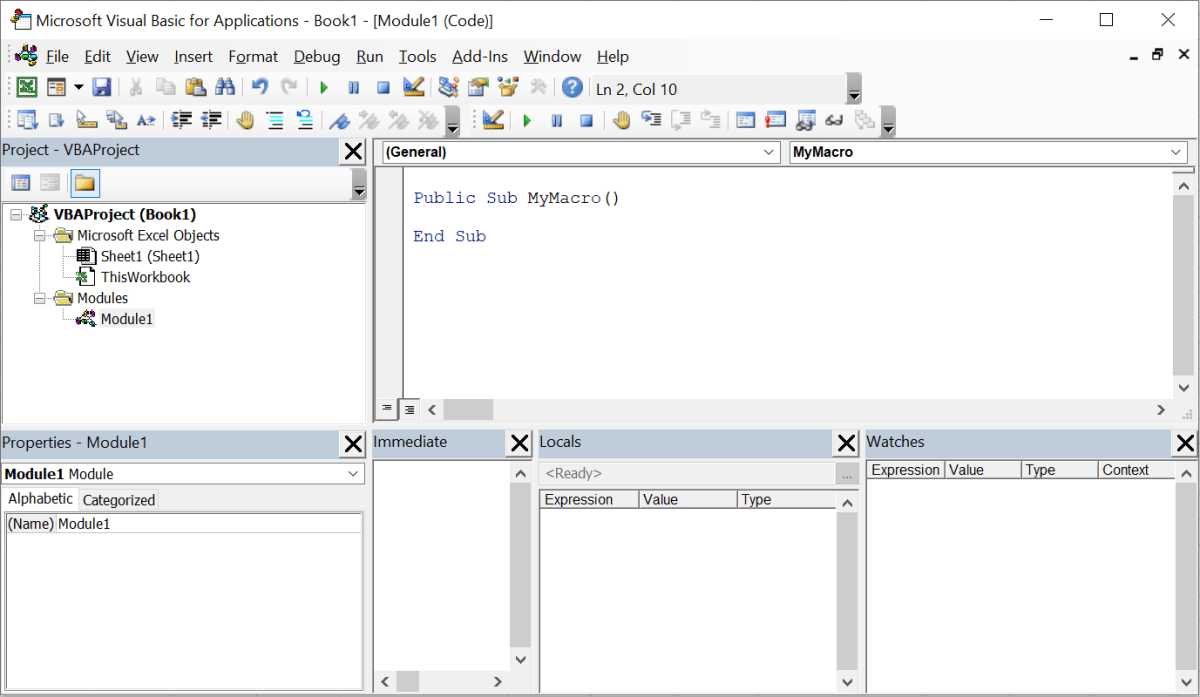
This window contains:
- Project Explorer
- Code Editor
- Properties Window
- Immediate Window
Understanding a VBA Module
A Module is where your macro code lives.
Example:
Sub MyMacro()
    MsgBox "Hello, Excel Automation!"
End Sub
Writing Your Own VBA Macros
Now that you’ve learned to edit recorded code, let’s write VBA from scratch.
Example 1 — Message Box Macro
Sub GreetUser()
    MsgBox "Welcome to Excel Macros!", vbInformation, "Macro Message"
End Sub
When run, it displays a pop-up.
Example 2 — Auto-Format Data Column
Sub FormatSales()
    Columns("B").NumberFormat = "$#,##0.00"
End Sub
Example 3 — Loop Through Rows
Loops are a powerful part of VBA.
Sub HighlightLowValues()
    Dim i As Long
    For i = 2 To 100
        If Cells(i, 2).Value < 200 Then
            Cells(i, 2).Interior.Color = RGB(255, 200, 200)
        End If
    Next i
End Sub
Example 4 — IF Conditions in VBA
If Range("B2").Value > 500 Then
    MsgBox "Great Performance"
Else
    MsgBox "Needs Improvement"
End If
Practical Automation Projects
Let’s apply Macros to real business tasks.
Project 1 — Auto-Cleaning Raw Data
Steps automated:
- Remove blank rows
- Remove duplicates
- Trim spaces
- Fix capitalization


VBA Script
Sub CleanData()
    On Error Resume Next
    Columns("A:D").SpecialCells(xlCellTypeBlanks).EntireRow.Delete
    Range("A:D").RemoveDuplicates Columns:=Array(1), Header:=xlYes
    Range("A:D").Replace What:="  ", Replacement:=" "
End Sub


Project 2 — Generate Monthly Sales Report Automatically
Includes:
Screenshot (Inline 10 — Sales Data)


VBA Script (Chart Automation)
Sub CreateSalesChart()
    Dim chartObj As ChartObject
    Set chartObj = ActiveSheet.ChartObjects.Add(Left:=200, Top:=100, Width:=400, Height:=300)
    chartObj.Chart.ChartType = xlColumnClustered
    chartObj.Chart.SetSourceData Source:=Range("A1:B13")
End Sub


Errors, Debugging & Optimization
Common VBA Errors
- Runtime error 9 → Index out of range
- Runtime error 13 → Type mismatch
- Runtime error 1004 → Invalid range or object
Debugging Tools in VBA
Open VBA Editor → Debug Menu


Tools include:
- Step Into (F8)
- Watch Window
- Immediate Window
- Breakpoints
Excel Macro Security & Permissions
Macros can contain code — Excel protects users by warning when macros are enabled.
Best practices:
- Always sign trusted macros
- Never run macros from unknown sources
- Use macro-enabled workbooks (.xlsm)
Excel Macros Best Practices
- Use clear naming conventions
- Indent your code
- Avoid Select & Activate
- Use variables efficiently
- Comment your code
- Turn off screen updating for faster execution:
Application.ScreenUpdating = False
Macros & VBA Cheat Sheet
Useful VBA Snippets
Insert Today’s Date
Range("A1").Value = Date
AutoFit Columns
Cells.EntireColumn.AutoFit
Copy & Paste
Range("A1:A10").Copy Destination:=Range("B1")
Final Summary
Excel Macros transform your workflow by automating repetitive tasks and building powerful productivity workflows. Whether you’re formatting reports, cleaning datasets, generating charts, or building dashboards — macros save time, reduce errors, and elevate your Excel skills.
By mastering:
- Macro Recorder
- VBA Editor
- Variables
- Loops
- Conditions
- Real automation projects
…you now have the toolkit needed to move into advanced Excel automation.